


Any game object can become a networked object by simply calling NetworkSpawn() on it. It will then be sent to all clients and can have Sync Properties and RPC Messages.
Every networked game object can have an owner, which determines who sends updates about its position, rotation and scale, as well as who can perform certain actions on it.
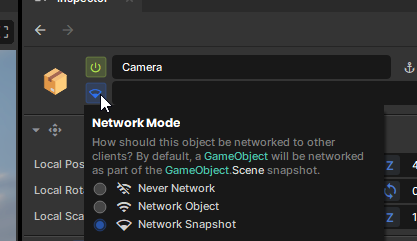
All game objects can be one of three network modes. This mode determines whether other clients see it, or how they receive new information about it.
| Mode | Behaviour |
|---|---|
NetworkMode.Never | This game object is never networked to others |
NetworkMode.Object | The game object will be sent to other clients as its own networked object which can have synchronized properties and RPCs |
NetworkMode.Snapshot (default) | The host will send this game object as part of the initial scene snapshot when a client joins the game |
The network mode can also be changed for an object in the Scene from the Inspector view.
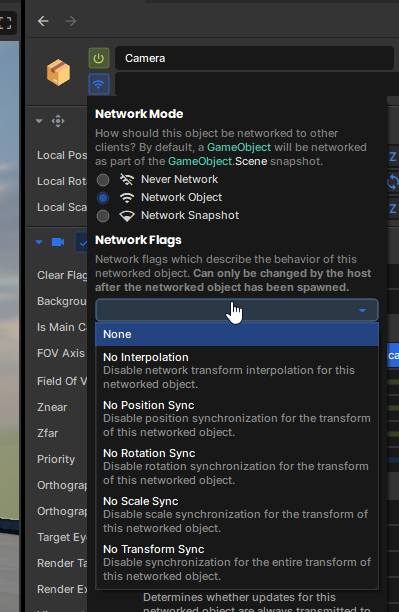
By default the transform of all networked objects is interpolated smoothly for other clients.
Disabling Interpolation
You can disable interpolation in one of two ways. Either by code, or using the inspector.
// Disable interpolation for this networked object.
Network.Interpolation = false;
Clearing Interpolation
Sometimes you want to clear any interpolation for an object. You can do that with Network.ClearInterpolation(). If you are the owner of the object, other clients will be told to clear interpolation when they next receive a transform update from us.
One use case for this would be to set the position of the object and have the position updated immediately for everybody without interpolation (teleporting.)
WorldPosition = Vector3.Zero;
Network.ClearInterpolation();
:::info
Once you call NetworkSpawn() on a game object, any further changes to its components or hierarchy will not be networked. Only information about the components or children that existed when you network spawned it will be sent to other clients.
:::
If you add new components, change the enabled state of a component, add new children or change the hierarchy of a networked object significantly, you can send a refresh update to other clients by calling Network.Refresh() on the networked game object or from one of its components.
By default, both the host and the owner of a networked object can send refresh updates for it. If you'd like to stop the owner from sending refresh updates you can do so by changing the connection permissions for a client.