


Fill paints the inside of a shape. Stroke paints along its edge. Both are properties on the painter; set them and every shape you draw afterwards uses them.
painter.Fill = Color.Orange;
painter.Stroke = Stroke.Solid( Color.White, 2 );
painter.Circle( center, 40 );

painter.Stroke = Stroke.None;
painter.Circle( center + new Vector2( 100, 0 ), 40 );  // fill only
Both default to none, so a fresh painter draws nothing until you set one of them.
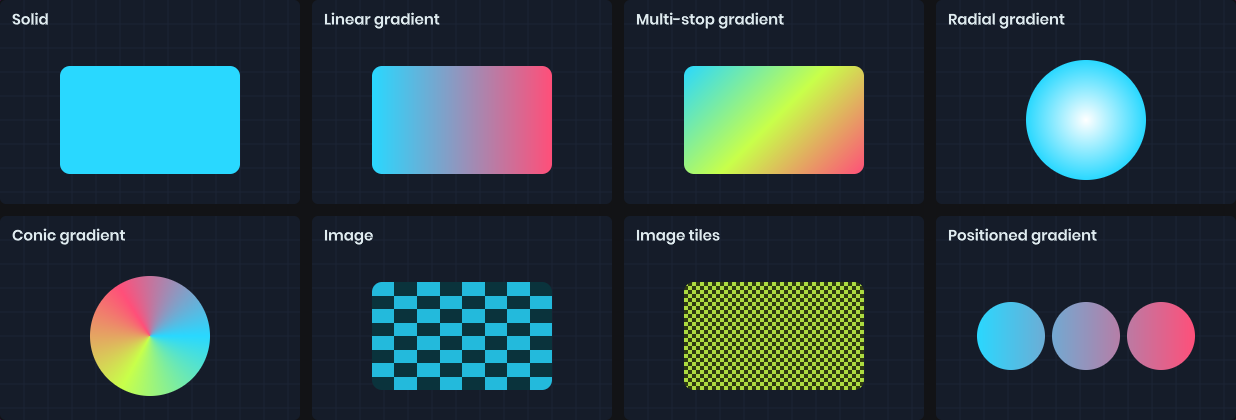
A fill is a solid color, a gradient or an image. Colors convert implicitly.
painter.Fill = Color.Red;
painter.Fill = Fill.Solid( Color.Red.WithAlpha( 0.5f ) );
painter.Fill = Fill.None;
Gradients
Simple two-color gradients stretch across the bounds of each shape you draw.
painter.Fill = Fill.LinearGradient( Color.Cyan, Color.Magenta );        // left to right
painter.Fill = Fill.LinearGradient( Color.Cyan, Color.Magenta, 90 );    // top to bottom
painter.Fill = Fill.RadialGradient( Color.White, Color.Transparent );   // center to edge
painter.Fill = Fill.ConicGradient( Color.Red, Color.Blue );             // sweeps around the center
For more than two colors, build the gradient from stops. Offsets go from 0 to 1, and two stops at the same offset make a hard edge.
painter.Fill = Fill.LinearGradient( 45 )
	.WithStop( 0, Color.Red )
	.WithStop( 0.5f, Color.Yellow )
	.WithStop( 1, Color.Green );
Gradients can also be positioned in drawing coordinates instead of stretching to the shape. This is useful when several shapes should share one gradient.
painter.Fill = Fill.LinearGradient( new Vector2( 0, 0 ), new Vector2( 300, 0 ), Color.Cyan, Color.Magenta );
painter.Fill = Fill.RadialGradient( center, center + new Vector2( 50, 0 ), Color.White, Color.Black );
Images
Fill.Image tiles or stretches a texture inside the shape. By default it stretches to the shape's bounds.
painter.Fill = texture;                                   // stretched
painter.Fill = Fill.Image( texture, tint: Color.Red );
painter.Fill = Fill.Image( texture, width: 64, repeat: BackgroundRepeat.Repeat );  // 64px tiles, height keeps the aspect ratio
painter.Fill = Fill.Image( texture, width: 64, height: 64, offsetX: 16 );
painter.Fill = Fill.Image( texture ).WithRotation( 45 );
Sizes and offsets are pixels, or a Length.Percent of the shape.
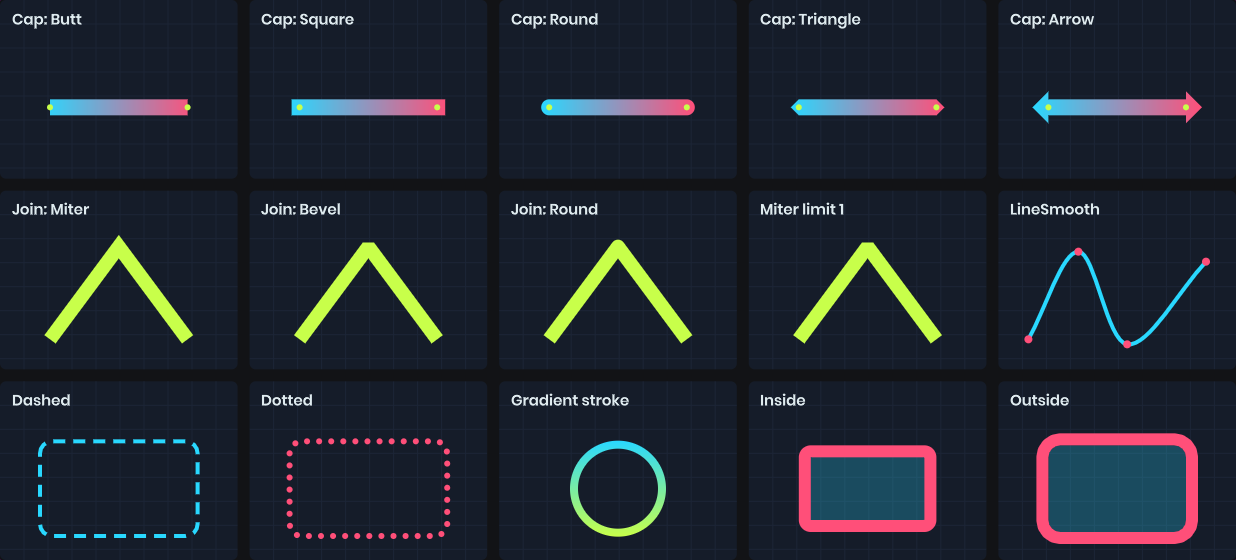
A stroke has a fill, a width, and a style. The fill can be anything a shape fill can be, including gradients and images.
painter.Stroke = Stroke.Solid( Color.White, 4 );
painter.Stroke = Stroke.Dashed( Color.White, 4, dashLength: 12, gap: 6 );
painter.Stroke = Stroke.Dotted( Color.White, 4, gap: 4 );
painter.Stroke = Stroke.Solid( Fill.LinearGradient( Color.Cyan, Color.Magenta ), 4 );
painter.Stroke = Stroke.None;
Animate the Offset of a dashed stroke to make it march along the path:
painter.Stroke = Stroke.Dashed( Color.White, 2, 8, 6, offset: Time.Now * 20 );
Caps and joins
Cap controls how open lines and dashes end. Join controls how corners meet.
painter.Stroke = Stroke.Solid( Color.White, 8 ).WithCap( Stroke.LineCap.Round );
painter.Stroke = Stroke.Solid( Color.White, 8 ) with { Join = Stroke.LineJoin.Bevel };
| Cap | Description |
|---|---|
Butt | Ends exactly at the point. The default. |
Square | Extends half the stroke width past the point. |
Round | A semicircle past the point. |
Triangle | A pointed tip. |
Arrow | A flared arrowhead. |
| Join | Description |
|---|---|
Miter | Sharp corners, falling back to bevel beyond MiterLimit. |
Bevel | Cuts the corner off. |
Round | Rounds the corner. The default. |
Alignment
On closed shapes the stroke is centered on the edge by default, so half of it overlaps the fill. You can move it fully inside or outside.
painter.Stroke = Stroke.Solid( Color.White, 4 ).WithAlignment( Stroke.StrokeAlignment.Inside );
Open paths like lines and arcs are always centered.
Outline strokes around a rectangle without filling it, offset inward or outward. RectShadow draws a blurred shadow. Both are covered in Shapes.