


In this article you'll find out:
Opening the Movie Editor
If Movie Maker isn't already visible, you can toggle it in the View menu.
It should fit nicely as a tab in the lower panel if you dock it there.
To edit and preview movies, you'll need a Movie Player component somewhere in your scene. Movie Players decide which objects in the scene should be animated by a particular movie, and control the current playback position.
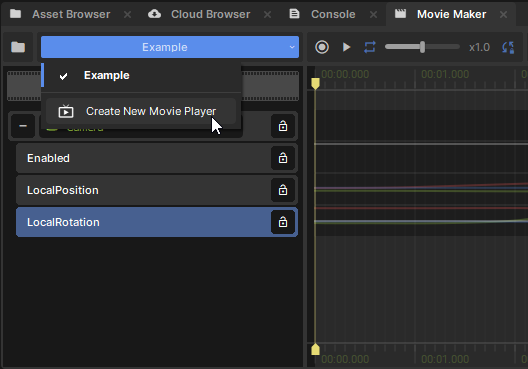 Creating a Movie Player
If you don't have any Movie Players in the current scene, you should see a big button to create one.
Otherwise, you can switch between players or create new ones by using the drop-down in Movie Maker's menu bar. This will only list players in the currently active scene.
You can also add one to a GameObject in the Inspector like any other Component.
Movies can either be embedded inside a Movie Player, or saved as a .movie asset.
Saving & Loading 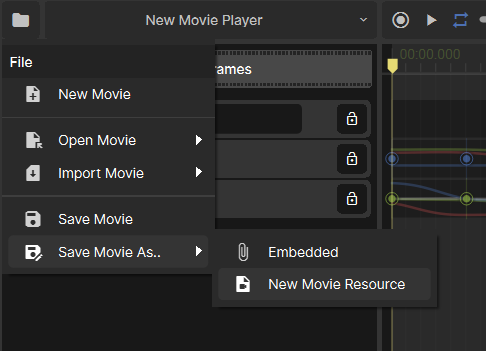
New movies will be embedded in the current Movie Player by default. You can save them as reusable .movie files, or embed a copy of the currently edited .movie, with the File menu.
Sequences
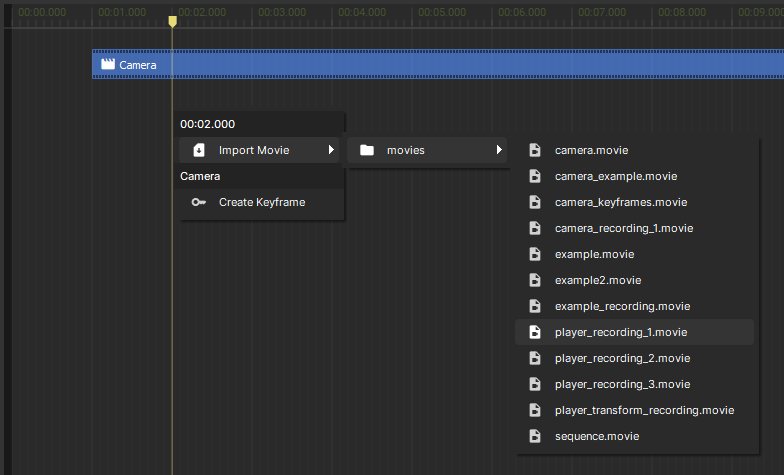
You can also reference segments of movies from each other using sequence blocks. This can be done by selecting Import Movie in either the file menu or when right-clicking in the timeline.
Movies describe how properties in a scene should change over time, and this information is stored in tracks.
There's a few types of track you'll need to know about.
Reference Track
This track references a GameObject or Component in the scene that should be controlled. It's up to the Movie Player to decide which particular object to bind each track to, so you can re-use the same .movie to control different actors.
Property Track
This represents a property somewhere in the scene, and describes how it should animate. This could be the position of the camera, the colour of a light, or text in a speech bubble.
Property tracks are always nested inside other tracks, either reference tracks or other properties. This is how the track knows what to control in the scene: it checks what the parent track is bound to, and looks up a property inside it with the track's name.
Sequence Track
This track references blocks of time from another movie, helping you organize and edit bigger movie projects with multiple shots.
Creating Tracks
Reference and property tracks can be created by dragging from the hierarchy or inspector into the track list.
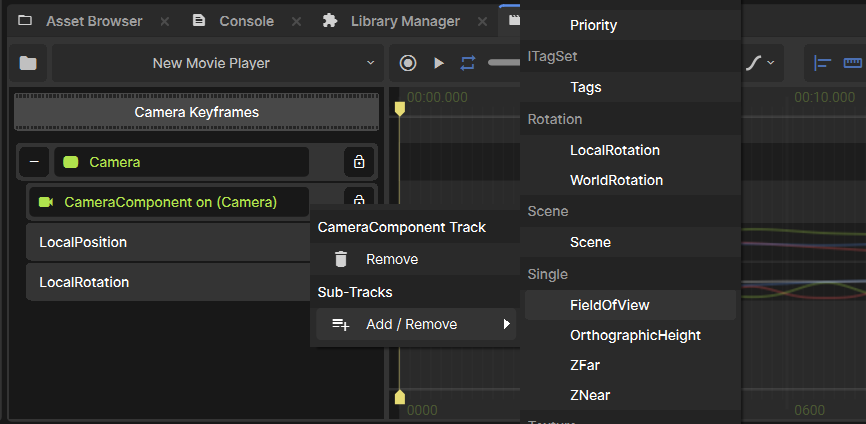
You can also create sub-tracks by right-clicking an existing track, and selecting the tracks you want from the context menu.
Sequence tracks are created automatically when you import a movie: either by right-clicking in the timeline, or through the file menu.
- Editor Map - find your way around the movie editor
- Keyframe Editing - a great place to start making simple animations
- Motion Editing - make more detailed animations and edit recordings
- Recording - manually puppet characters or record gameplay
- Sequences - cleanly structure big projects with nested movies
- Playback API - define movies and play them back using C#.
- Recording API - record and save gameplay using C#