You can create your own editor tool to help you create your game. Your tool needs to be created in an editor project.
[EditorTool( "editortool.rocket" )] // this class is an editor tool, with the identifier of its shortcut
[Title( "Rocket" )] // title of your tool
[Icon( "rocket_launch" )] // icon name from https://fonts.google.com/icons?selected=Material+Icons
public class MyRocketTool : EditorTool
{
	[Shortcut( "editortool.rocket", "u", typeof( SceneViewWidget ) )] // keyboard shortcut
	public static void Activate() => EditorToolManager.SetTool( nameof( MyRocketTool ) );

	public override void OnEnabled()
	{

	}

	public override void OnDisabled()
	{

	}

	public override void OnUpdate()
	{

	}
}
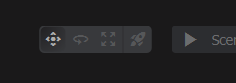
This will create a tool that you can select here.
The EditorTool has a member called Scene to access the scene.
public override void OnUpdate()
{
	var tr = Scene.Trace.Ray( Gizmo.CurrentRay, 5000 )
					.UseRenderMeshes( true )
					.UsePhysicsWorld( false )
					.WithoutTags( "sprinkled" )
					.Run();

	if ( tr.Hit )
	{
		using ( Gizmo.Scope( "cursor" ) )
		{
			Gizmo.Transform = new Transform( tr.HitPosition, Rotation.LookAt( tr.Normal ) );
			Gizmo.Draw.LineCircle( 0, 100 );
		}
	}
}
Depending on how your tool operates, you might want to prevent the user's ability to click to select GameObjects in the scene. To do this you can change AllowGameObjectSelection on your tool.
public override void OnEnabled()
{
	AllowGameObjectSelection = false;
}
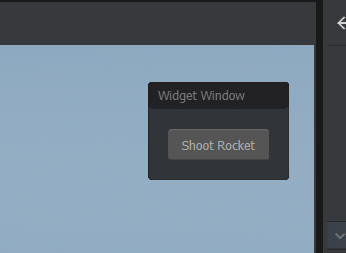
You can create UI on the scene's overlay. This is useful for creating controls and other things.
public override void OnEnabled()
{
    // create a widget window. This is a window that
    // can be dragged around in the scene view
	var window = new WidgetWindow( SceneOverlay );
	window.Layout = Layout.Column();
	window.Layout.Margin = 16;

    // Create a button for us to press
	var button = new Button( "Shoot Rocket" );
	button.Pressed = () => Log.Info( "Rocket Has Been Shot!" );

    // Add the button to the window's layout
	window.Layout.Add( button );

    // Calling this function means that when your tool is deleted,
    // ui will get properly deleted too. If you don't call this and
    // you don't delete your UI in OnDisabled, it'll hang around forever.
	AddOverlay( window, TextFlag.RightTop, 10 );
}
The UI is created when the tool is activated, and destroyed when it's deactivated.