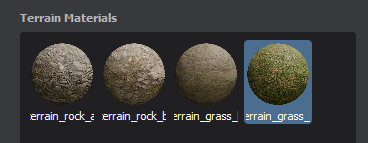
A Terrain Material is an Asset that defines a set of PBR textures, physics surfaces, detail meshes and other properties that the Terrain uses to render.
Because they are Assets you can easily reuse them on multiple Terrains in different Scenes easily, transfer them between projects, or use them from the cloud.
These are similar but different to standard Materials because Terrain uses specialized shaders for rendering to deliver performant landscape rendering with LOD support and material blending.
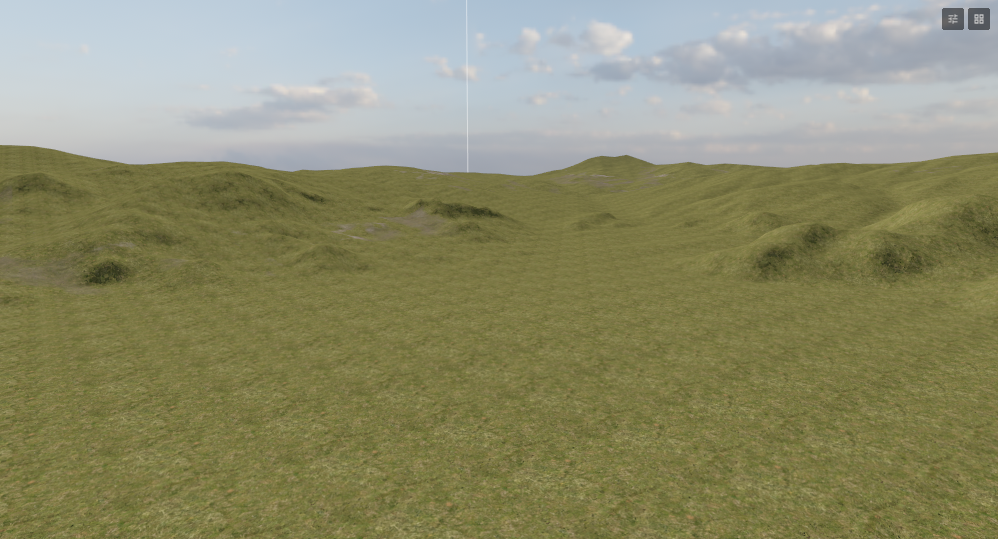
The first Terrain Material you apply to a Terrain automatically becomes the base layer, and spreads over the whole landscape. You can then paint areas with other Terrain Materials blending them together.
Creating Terrain Materials
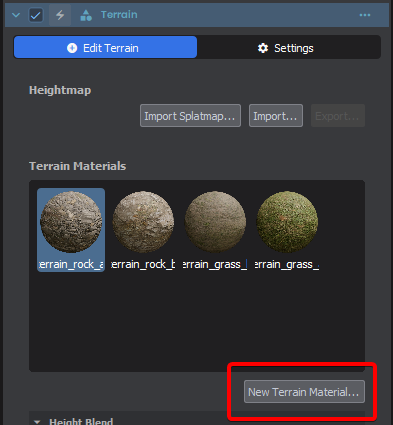
To create a new Terrain Material, select your Terrain GameObject and look at the Inspector, under Terrain Materials press New Terrain Material… Pick a save location and it will be automatically added to your Terrain Material list.
A resource editor window will open allowing you to select and modify the properties of the Terrain Material.
You can also create a Terrain Material that isn't automatically associated with a Terrain, by right-clicking the Asset Browser and selecting New Asset → New Terrain Material…
Adding Terrain Materials
Existing Terrain Material assets can be dragged from the Asset Browser into the Terrain Material list - or onto the Terrain itself.
Terrain Materials can be found on the cloud by clicking the Browse… button, or filtering @cloud ext:tmat.
Terrain Material Properties
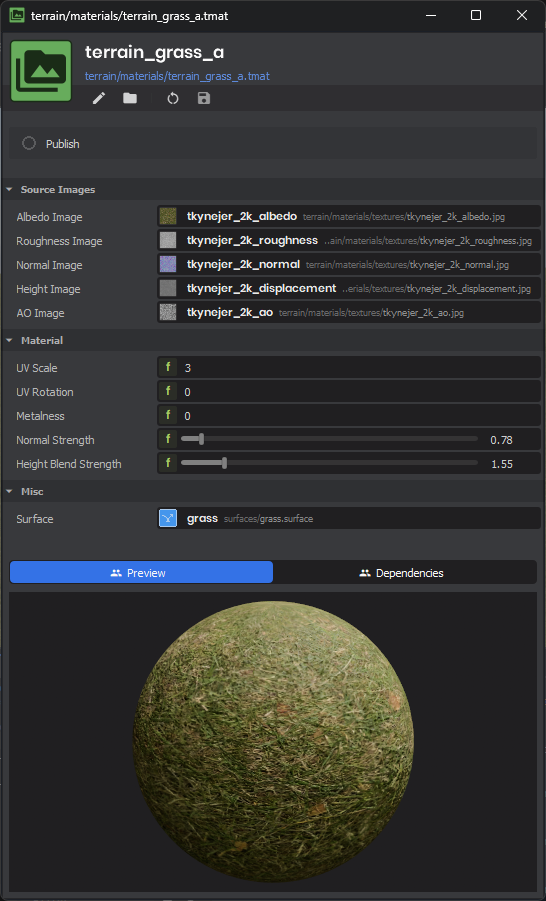
Painting Terrain Materials
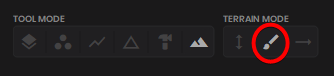
The first material is applied across the entire Terrain by default. You can paint subsequent Terrain Materials using the Paint Texture tool and selecting the Terrain Material in the list in the inspector.